
By Zebialerts.com Team
Digital marketing in Pakistan is evolving rapidly, and every advertiser wants to maximize their reach without breaking the bank. One of the most discussed topics in the community is the “Facebook Threshold.” This refers to the amount of money Facebook allows you to spend on ads before they charge your primary payment method.
Many users believe that obtaining a high threshold—ranging from $100 to $900—is impossible or purely based on luck. However, with the right method, specific tools, and a systematic approach, you can secure these credits to run your campaigns.
In this comprehensive guide, we will break down the exact method shared in our latest class. We will cover how to generate the necessary details, check for validity, and importantly, how to get multiple thresholds on a single Facebook ID.
Understanding the Facebook Threshold System
Before we dive into the technical steps, it is essential to manage your expectations regarding the credit amount. You might see an interface showing a $2 credit, or you might hit the jackpot with a $100 or even $900 threshold.
The amount you receive depends on two main factors:
- Luck: Sometimes the algorithm simply assigns a random value.
- Facebook’s Internal Scoring: How the platform views the “trust” level of the payment method you attach.
Whether you get $2, $5, or $100, the process remains the same. The goal is to secure a working threshold that allows you to run advertisements without immediate upfront costs.
Step 1: Generating the Password and PIN
The foundation of this method lies in generating the correct data sequence to create a virtual card. This starts with a specific password generator website.https://web.facebook.com/
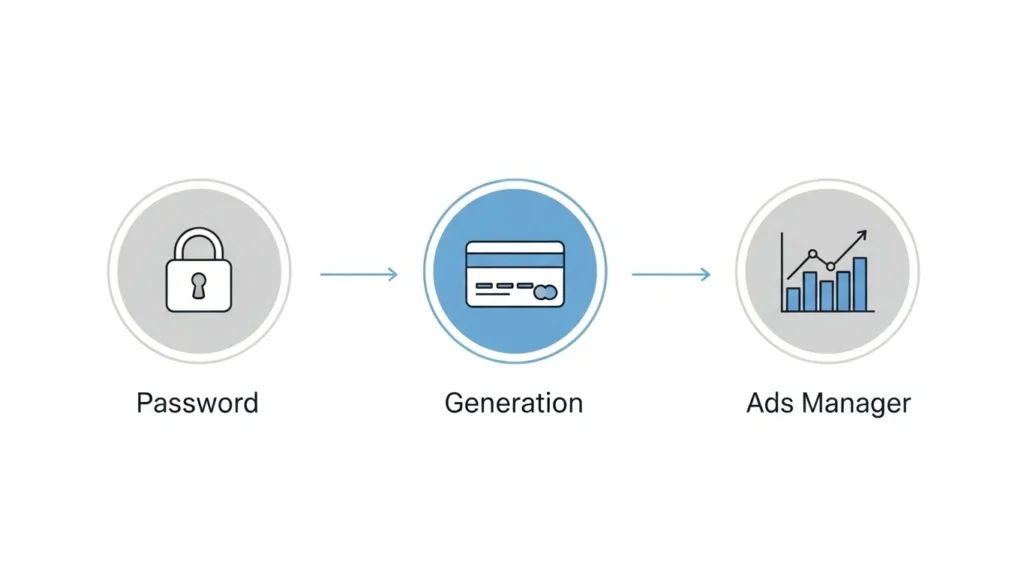
Configuration Settings
When you land on the password generator tool, you need to configure the settings exactly as follows to ensure the output works for this method:
- Top Field: Write the number 5.
- Quality/Quantity: You can set this to 100 or up to 2500. For this guide, setting it to 100 is sufficient.
- Checkboxes: Uncheck “Lower” and “Upper” case options.
- Symbols: Uncheck the Symbols box.
- Numbers: Ensure only the Numbers option is checked.
Once these settings are locked in, click on the “Make Password” button. The system will generate a list of numeric passwords.
Step 2: Formatting the Code
Now that you have your raw numbers, you need to format them using a second tool. This step prepares the data to be turned into a BIN (Bank Identification Number).
- Copy the Data: Copy all the numeric passwords generated in Step 1.
- Open the Second Tool: Navigate to the formatting tool.
- Paste: Paste the copied numbers into the first box.
- Add Prefix: In the second box, type the number 4. Do not write anything else—just the digit 4.
- Execute: Click the “Add” button.
This process modifies the numbers, making them ready for the BIN generation phase.
Step 3: Generating the BINs
This is a crucial step. You will use the formatted codes to generate working BINs that are compatible with Facebook’s payment processors.
BIN Tool Settings
Open the third website, which is the BIN generator. Follow these specific instructions:
- Paste Data: Copy the formatted codes from Step 2 and paste them into the BIN section.
- Card Network: Check the box for Visa.
- Card Type: You must select Classic and Golden. Do not select other options like Platinum or Business, as they may not work with this specific glitch.
- Generate: Click on “Find.”
Wait a few seconds. The tool will process the data and provide you with a list of BINs from various countries. These are working BINs that mimic legitimate bank identifiers.
Note: Many people in the market sell these BINs for $10 to $15. By following this guide, you are learning to create them yourself for free.
Step 4: Creating the Virtual Cards
Now that you have a working BIN, you need to generate the actual credit card numbers, expiry dates, and CVV codes.
- Select a BIN: Copy the first BIN from the list you just generated.
- Open the Generator: Go to the card generator website (link provided in our resource section).
- Input BIN: Click on “Advanced” and paste your BIN.
- Auto-Fill: If you click anywhere on the screen, the tool should automatically fill the “X” placeholders.
- Quantity: Set the quantity to 500. Do not go above 500, or the tool may lag.
- Generate: Click the button. You will now have a list of hundreds of potential card numbers.
Step 5: Checking for Live Cards
You now have a list of 500 cards, but not all of them will work. Some will be “Dead” (invalid) and some will be “Live” (active). You need to filter them using a specific checker tool.
Using the Free Checker
- Select Checker 4: On the checker website, look for the “Free Checker” menu and select “Checker 4.” This specific server works best for this method.
- Paste Cards: Copy your list of 500 cards and paste them into the bulk box.
- Run Check: Click “Check Cards.”
The system will start analyzing the cards one by one. You will see results appearing as “Valid” or “Invalid.”
- Invalid: Discard these.
- Valid: Copy these details immediately. Save them in a notepad.
How to Read the Card Details
The checker will give you a long string of text. You need to separate the details manually for inputting into Facebook.
- Format:
CardNumber|Month|Year|CVV - Example:
436xxxxxxxxx|09|2032|739
In this example:
- Card Number: 436xxxxxxxxx
- Month: 09
- Year: 2032
- CVV: 739
Step 6: Adding the Payment Method to Facebook
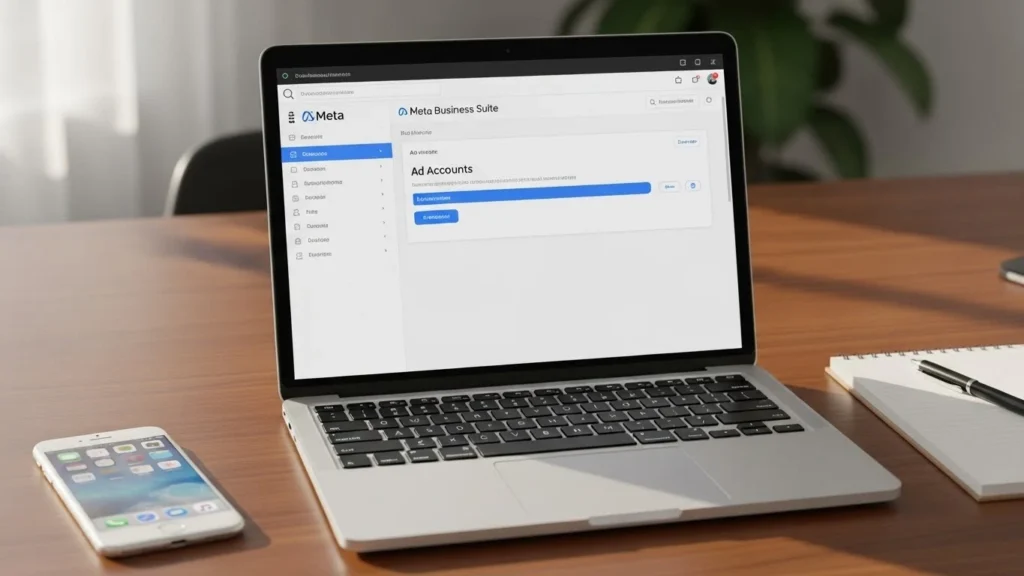
Now comes the execution. You can do this on an old Facebook ID or a newly created one. The age of the ID or your physical location does not matter. The only thing that dictates the currency (USD, GBP, PKR) is the origin of the card you generated.
- Open Ads Manager: Go to your Facebook Ads Manager.
- Payment Settings: Click on the menu and select “Billing” or “Payment Methods.”
- Add Payment Method: Click the button to add a new card.
- Location Settings:
- If you are using a US BIN (which is recommended), change the Country to United States.
- Set the Currency to US Dollar.
- Input Details: Copy and paste the Card Number, Expiry, and CVV from your notepad.
- Zip Code: If Facebook asks for a Zip Code, open a new tab and search for “Fake USA Address.” Copy a random Zip Code and paste it in.
Handling OTPs
Sometimes, Facebook may ask for an OTP (One Time Password) to verify the card.
- If this happens, do not panic.
- There is a specific code script available (check the description resources).
- By clicking “Claim” on that code, the OTP requirement is often bypassed.
Once you click Save, the screen will refresh. If successful, you will see a notification: “Payment Method Added.” You will then see your threshold balance (e.g., $2.00, $10.00, or more).
Advanced Trick: Multiple Thresholds on One ID
This is the secret that most sellers won’t tell you. They say you can only get one threshold per Facebook ID. That is incorrect. You can get multiple thresholds by using Business Manager.
The Process:
- Create a Business Manager: Go to
business.facebook.comand create an account using your current FB ID. - Verify Email: You will receive a confirmation email. Click “Confirm Now” to activate the Business Manager.
- Go to Ad Accounts: Inside Business Manager settings, look for the “Ad Accounts” tab on the left sidebar.
- Create New Account: Click “Add” > “Create New Ad Account.”
- Name it anything random.
- Set Currency to USD.
- Click “Next” and then “Create.”
- Repeat the Card Process: Now, open this new Ad Account. Repeat the steps of adding a generated card.
By doing this, you can generate a new threshold on the new Ad Account. When that threshold is exhausted or suspended, simply go back to Business Manager, create another Ad Account, and repeat.
Important Safety and Community Guidelines
We must address safety regarding deals and trades. We have noticed users making deals in the comment sections of our Facebook page.
- Warning: If you deal directly with strangers in the comments and get scammed, Zebialerts is not responsible.
- The Safe Way: Join our official Community Group. If you need to buy or sell accounts or methods, always use the Admin as an intermediary (Escrow). This ensures your money and assets are safe.
Also, regarding the tools used: An Ad Blocker is highly recommended. These free generator sites are full of pop-up ads. Installing a simple Ad Blocker extension will save you a lot of irritation and make the workflow smoother.
Conclusion
The Facebook Threshold method is a technical workaround that relies heavily on generating the correct sequence of card data and verifying it efficiently. By using the password generator to create seeds, converting them to BINs, and filtering for live cards, you can access ad credits to boost your digital presence.
Remember, the key is patience. You might get $2 on your first try and $100 on your second. Don’t give up if the first card comes back as invalid—just go back to your checker list and try the next “Live” card.
Stay tuned to Zebialerts.com for more practical guides on digital marketing and tech tricks.