
Are you still juggling five different subscriptions for your daily work? You have one tool for writing, another for summarizing PDFs, a third for making presentations, and maybe even a fourth for generating images. Stop. Just stop.
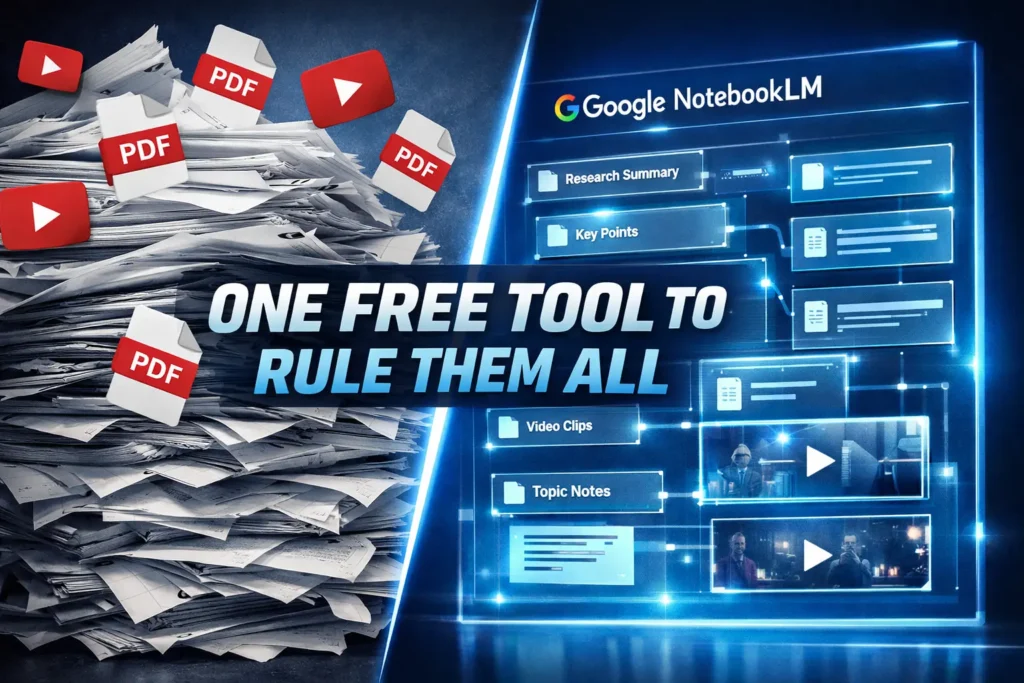
The landscape of Artificial Intelligence changes fast, but Google has just dropped an update that genuinely changes the game. They have transformed NotebookLM from a simple note-taking app into a full, end-to-end AI powerhouse.
We are talking about a tool that creates AI podcasts in over 80 languages, conducts deep research that writes itself, generates visual infographics, creates study systems for students, and even turns text into video. The best part? It is all free.
In this guide for Zebialerts.com, we are going to walk you through six practical use cases that you can use today. Whether you are a student in Lahore, a freelancer in Karachi, or a researcher in Islamabad, by the end of this article, you won’t just know Google NotebookLM—you will have mastered it.
Let’s get into it.
What is Google NotebookLM? (And Why It’s Different)
Before we dive into the hacks, let’s look at the interface. It is surprisingly simple. When you search for NotebookLM and create a new notebook, you will see three main sections:
- Sources (Left): This is where you dump your data. PDFs, YouTube links, website URLs, or text files.
- Chat (Middle): This is where you ask questions and get answers based only on your uploaded sources.
- Studio (Right): This is where the magic happens—creating podcasts, newsletters, and briefing docs.
The “Moat”: Why Use This Over ChatGPT?
You might be asking, “Why shouldn’t I just use Gemini or ChatGPT?” There are three massive reasons why NotebookLM is superior for specific tasks:
- Grounding (No Hallucinations): It only uses your sources. It doesn’t pull random, potentially fake data from the internet. It sticks to the documents you give it.
- Citations: Every answer provides a citation. You can click it to verify exactly where the information came from.
- All-in-One Capability: It replaces the need for separate tools for mind maps, flashcards, presentations, and videos.
Google built this with a different architecture than standard Gemini. It is designed for accuracy and depth.
Use Case 1: Your Personal AI News Podcast (In Hindi & More)
This is a game-changer for anyone who suffers from information overload. We all know that feeling of waking up to 50 new AI announcements, research papers, and product launches. It is impossible to read everything.
Here is how you can stay updated without reading a single word:
- Gather Sources: Take URLs from reputable sources like arXiv (for papers), MIT News, or specific tech blogs.
- Insert into Notebook: Paste these links into your source area. NotebookLM will read everything instantly.
- Audio Overview: Go to the “Audio Overview” section.
- Select Language: This is huge. You can select from 80+ languages, including Hindi, Spanish, or Japanese.
- Generate: Click generate.
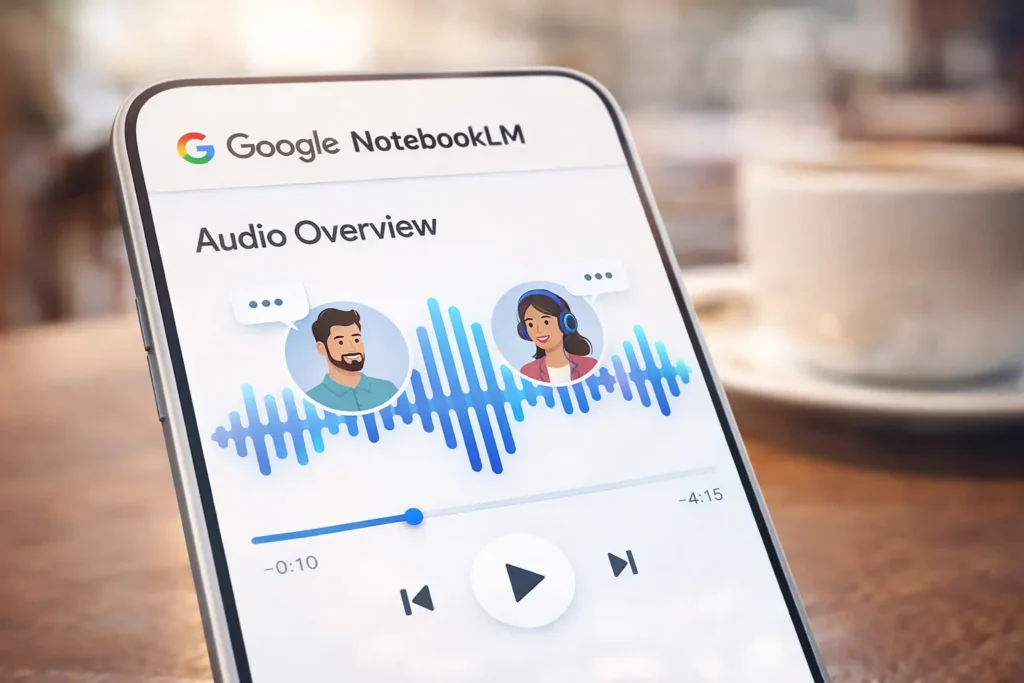
You will hear two AI hosts having a completely natural conversation about your specific articles. They banter, they interrupt each other naturally, and they summarize the complex points.
Pro Tip: You can give it custom instructions like “Focus on today’s AI developments” or “Explain this to a 5-year-old.”
I personally use the Hindi setting to listen during my morning commute. By the time I reach work, I know everything that happened in the tech world, presented in a format that feels like listening to the radio.
Use Case 2: Deep Research & Instant Slide Decks
If you are a corporate professional or a university researcher, this feature—launched in late 2025—will save you dozens of hours.
While ChatGPT gives you answers and Perplexity gives you summaries, NotebookLM Deep Research creates a full report with 40+ verified sources.
How to Execute Deep Research:
- Click on Deep Research.
- Type your broad topic (e.g., “Future trends of AI in 2026”).
- Watch it work. It doesn’t just search; it creates a research plan, browses hundreds of websites, and compiles a report with an executive summary, strategic analysis, and timelines.
Creating the Presentation (The Nano Banana Model)
Once you have your research report, import it as a source. Then, head to the Studio and select Slide Deck.
This uses Google’s “Nano Banana” image generation model. Unlike older AI models that messed up text in images, this model gets the spelling right. You can choose a style (like “TEDx style” or “Steve Jobs Minimalist”).
Within minutes, you have a keynote-ready presentation with perfect text, professional visuals, and a logical flow. No PowerPoint skills required.
Use Case 3: The YouTube Analyzer & Infographic Maker
We have all seen those 3-hour podcasts (like the Nikhil Kamath or Elon Musk interviews). Who has the time to watch the whole thing? Even if you do watch it, you’ll likely forget half the points.
The Workflow:
- Copy the YouTube Link: You don’t need the transcript; just the link.
- Add as Source: Paste it into NotebookLM.
- Ask for Takeaways: Ask for a summary of specific topics like “Starlink” or “Robotics.”
- Create an Infographic: This is where it gets cool. Ask the Studio to create an infographic using the Nano Banana Pro model.
You can ask for specific styles. Want a “Dark Mode Neomorphism” look? Or maybe a “Ghibli Studio” anime style?
For example, I took a 3-hour conversation with Kunal Shah, asked for a “Voxel 3D Pixel” style presentation, and NotebookLM generated a stunning, printable infographic titled “The Unstoppable Mindset.” The text was crisp, the visuals were on point, and I could literally print it out and stick it on my wall as a cheat sheet.
Use Case 4: The Ultimate Study Expert for Students
This one is for the students in Pakistan preparing for exams with zero preparation time. If you have an exam tomorrow at 9 AM and it’s currently 11 PM, this is your cheat code.
Step-by-Step Study Guide:
- Dump Everything: Upload your textbooks, PDFs of notes, and links to YouTube lecture videos.
- The “Academic Revisionist” Prompt: Tell the chat to act as your tutor.
- One-Click Mind Map: Ask for a mind map to visualize how all the concepts connect.
- Flashcards: Click the “Flashcards” button. It will instantly generate 50-70 cards from your material. You can click to flip them and test yourself.
- Quiz Mode: Ask it to generate a quiz. If you get an answer wrong, it explains why based on your textbook.
You can go from understanding nothing to memorizing key concepts in a single night. It transforms passive reading into active recall.
Use Case 5: Video Overview (Text-to-Video)
This feature is something almost nobody is talking about, and it is crazy that it is free. Usually, to make an animated explainer video, you need a scriptwriter, an animator, an editor, and a voiceover artist.
With Video Overview, you can turn a text document into a video with one click.
How it Works:
Let’s say you have a script about a historical figure, like the Ahom general Lachit Borphukan.
- Upload the script.
- Select Video Overview.
- Choose a style (e.g., “Heroic Documentary”).
- Generate.
The AI analyzes the text and creates a video with consistent characters, voiceovers, and pacing. It can describe a general leading an army from a stretcher in a raging river, matching the visuals to your text perfectly.
For Content Creators: You can even use this to generate scripts. Feed it three videos from your favorite creators (like MrBeast or Iman Gadzhi) and ask it to write a script on a new topic combining their styles. Then, feed that script back into the Video Overview to generate a draft video. It handles the “retention editing” style automatically.
Use Case 6: Organizing Chaos with Data Tables
Planning a trip or organizing research data can be messy. Let’s say you are planning a trip to Japan or even a tour of Northern Pakistan. You have watched five YouTube videos and read ten blogs.
Instead of keeping 20 tabs open:
- Paste all those links into NotebookLM.
- Click on Data Table.
- Custom Prompt: Tell it exactly what you want. “Create a table of top attractions with columns for Name, Estimated Cost, Travel Logistics, and Review Highlights.”
It scans all the videos and blogs and builds a clean, structured table. It will even catch details like “Nara Park is free, but be careful of aggressive deer,” directly from the sources. You can then export this directly to Google Sheets.
This is incredible for meeting transcripts, research notes, or comparing product prices.
Bonus: Content Repurposing for Social Media
Here is a bonus hack for digital marketers and creators. If you make long-form content (like YouTube videos or blogs), repurposing it for LinkedIn, X (Twitter), or Instagram takes hours.
The Fix:
- Upload your video link or blog draft.
- Ask: “Write a viral Twitter thread based on this.”
- Ask: “Write a personalized, human-sounding LinkedIn post.”
Because it is grounded in your content, it adopts your tone. It doesn’t sound like a generic robot; it sounds like you. It pulls specific examples from your video (like “Runway Gen 4.5” or “China vs OpenAI”) and formats them perfectly for the platform.
Understanding the Plans: Free vs. Paid
Google is very generous with the free tier, which is what most users on Zebialerts will need.
- Free Plan:
- 100 Notebooks.
- 50 Sources per notebook.
- 50 Chats per day.
- Access to Audio/Video overviews and Flashcards.
- Pro & Ultra Plans:
- These are for power users needing up to 600 sources per notebook and priority access to new Gemini models.
But honestly? The features we listed above are all available on the free version right now.
Conclusion: Why You Need to Start Today

We are moving into an era where “AI literacy” is just as important as reading and writing. Google NotebookLM has bridged the gap between having information and actually understanding it.
You just learned how to:
- Turn boring docs into engaging podcasts.
- create professional presentations in minutes.
- Summarize hours of video content instantly.
- Build study aids that actually help you pass.
You are no longer paying for 10 different subscriptions. You have one tool, and it is in your pocket (yes, the mobile app supports background playback and camera integration too).
Go try it. Experiment with it. Build your own workflows. The tool is free, so there is zero risk.
Stay tuned to Zebialerts.com for more practical tech guides, price updates, and digital tools reviews.