
Introduction

If you are a computer user, you face certain issues every single day. Whether it is getting distracted online or dealing with a slow computer, we all have these struggles. Today, I am going to share seven specific problems and their solutions. These are not just random issues; they are real problems faced by my own office staff.
I asked my team members one by one about the challenges they face while working. The good news is that the solutions to all these problems are basically different browser tools. Yes, friends, with the help of the best Chrome Extensions For 2026, I am going to solve their problems.
If you are interested in knowing which tools should be on your computer, keep reading. These Chrome Extensions For 2026 are designed to make your work life easier and more productive. Let’s move towards the first problem faced by our team member, RJ. [Two Simple Chrome Settings That Can Make Your Computer and Browser Faster]
Stop YouTube Distractions Instantly
Our first problem comes from RJ. He told me that whenever he watches learning or tutorial-related videos on YouTube, he faces a major issue. On the right-hand side of the screen, a lot of recommended and unnecessary videos appear.
This is a common trap. You go to watch one important video, but the suggestions distract you. You end up clicking on thumbnails that have nothing to do with your work. RJ found that his time gets wasted on these unnecessary videos, and he forgets why he came to YouTube in the first place.
The Solution: Unhook
To solve this, you need one of the most useful Chrome Extensions For 2026. If you also get distracted by side recommendations, you should install an extension named “Unhook.”
How to use it:
- Search for “Unhook” in the extensions store.
- Click the “Add to Chrome” button.
- Enable the extension.
As soon as you activate it, you will see a massive difference. You will only see the video you want to watch. The rest of the suggestions disappear completely. This means you will not get distracted. To save yourself from wasting time, this is a pretty good tool included in our list of Chrome Extensions For 2026.
Speed Up Your Slow Laptop
Next, I spoke to Sarika. Her problem is something almost every Chrome user faces. She uses Chrome daily for her work, which means a lot of tabs remain open at the same time.
When you have too many tabs open, the speed of your laptop becomes slow. I personally keep a lot of tabs open too. The issue is that open tabs utilize your computer’s RAM. When RAM gets full, the computer starts lagging. This is where efficient Chrome Extensions For 2026 come into play.
The Solution: OneTab
The solution is simple. You need to install an extension named “OneTab.” This tool is a lifesaver for anyone who works with multiple pages at once.
How it helps:
- Search for “OneTab” and click “Add to Chrome.”
- Once enabled, you will see a button for the extension.
- When you click it, all your open tabs collapse into a single list on one page.
This action drastically reduces RAM utilization. Your computer becomes faster immediately. If you want to access a tab again, you just click on it from the list, and it opens in a separate window. There is also a “Restore All” button if you need everything back. This is one of the most practical Chrome Extensions For 2026 to keep your machine running smoothly.
Write Emails Without Mistakes
Let’s move to the third person in our office, Jignesh. His role involves a lot of writing. He told me that he has to write many emails throughout the day. The problem is that he often makes grammatical mistakes and spelling errors.
English is a second language for many of us, so making mistakes is obvious. However, in a professional setting, you want your emails to look perfect. To improve this, you can add one of the most popular Chrome Extensions For 2026 to your browser.
The Solution: Grammarly
The solution is “Grammarly.” It is very simple to set up and use.
Steps to improve writing:
- Search for Grammarly in the extensions store.
- Click “Add to Chrome” and enable it.
- Start writing your email or article.
This extension automatically suggests correct spellings. It also points out grammatical mistakes and suggests how you should change sentences to make them sound better. It corrects your grammar and spelling in real-time. If you write content, articles, or social media posts, you must try this entry in our list of Chrome Extensions For 2026. [https://chromewebstore.google.com/]
Listen to Articles Instead of Reading
Sagar, a content writer in our office, shared a unique problem. He has to read a lot of articles throughout the day for research. Often, he gets tired of reading so much text. He asked if there is a way to listen to the articles instead of reading them.
Of course, there is a way. This brings us to another great tool among our Chrome Extensions For 2026. If you also feel bored reading long pages, this tool is for you.
The Solution: Read Aloud
You need to add the “Read Aloud” extension. This tool converts text into speech very nicely.
How it works:
- Install the extension and enable it.
- Visit any particular page or blog you want to consume.
- Click the extension icon.
It will start reading the content inside the page for you. You can listen comfortably while doing other tasks. This makes consuming information much easier and is a key feature of modern Chrome Extensions For 2026.
Copy Code Directly from Videos
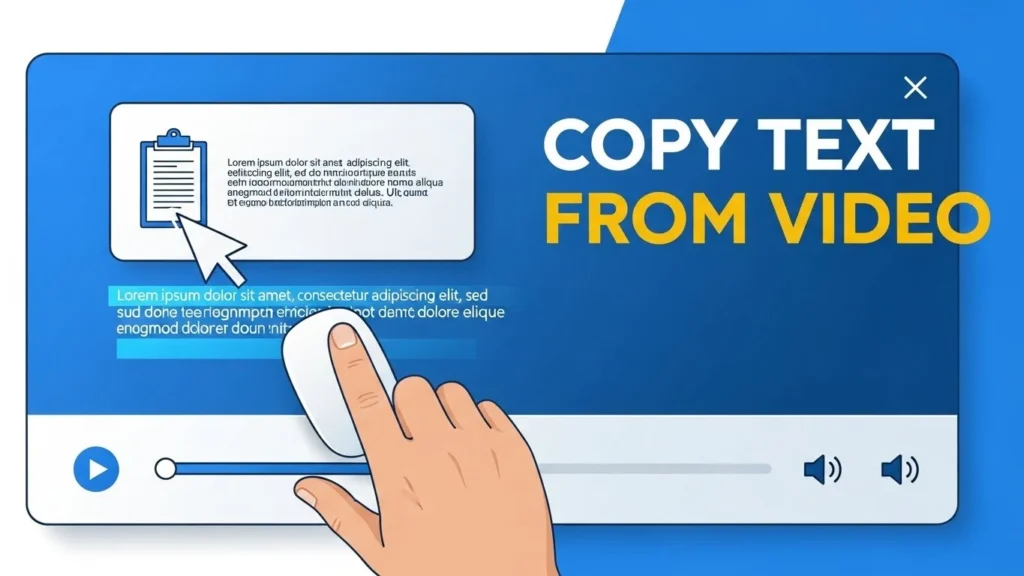
Bhushan is learning programming. He watches a lot of videos on YouTube to learn coding. His problem is that sometimes big codes appear in the video, and he needs those codes. He wanted to know how to copy code directly from a video.
This is a great question for students. If you see text in an image or a video and want to copy it, you can do it easily. You don’t have to type it out manually.
The Solution: Screenshot to Text OCR
The extension you need is called “Screenshot to Text OCR Image Text Extractor.” This is one of the most advanced Chrome Extensions For 2026 for students and developers.
How to capture text:
- Add the extension to Chrome.
- Pause the video at the location where the code or text is visible.
- Use the extension to drag and select the area on the screen (like taking a screenshot).
The extension will copy whatever content or code is on that screen. You can then open Notepad and paste the content there. It is very useful for extracting notes from images or videos.
Read Websites Without Annoying Ads
Manali shared a problem that we all face. She reads content on websites daily, but she gets distracted by ads. Sometimes ads pop up on the side or in the middle of the content, making it hard to focus.
When you are trying to read a blog, ads can be very annoying. To solve this, you can use specific Chrome Extensions For 2026 designed for a clean reading experience.
The Solution: Clearly Reader
The extension is called “Clearly Reader.”
How to clean up pages:
- Add it to Chrome and enable it.
- When you are on a page with ads, click the extension.
You will see that all the ads that were visible earlier disappear. The content comes up properly formatted for reading. As a bonus, you can also use an “Ad Blocker” extension to make ads disappear completely from your browsing experience. These tools ensure you can focus on the content without distractions.
Access Computers Remotely with Ease
Finally, we have Asif sir. His problem arises when he solves students’ doubts remotely online. He uses software like AnyDesk, but it often runs slow or fails to connect. This is a common issue with remote desktop software.
If you access clients’ PCs or help students remotely, you need a stable connection. There is a solution provided directly by Google, which is one of the most reliable Chrome Extensions For 2026.
The Solution: Chrome Remote Desktop
The extension is “Chrome Remote Desktop.”
Why it is better:
- It is very easy to add to Chrome.
- You can share your screen with anyone.
- You can access anyone’s screen securely.
I have even made a dedicated video on this topic because it is so useful. It solves the lagging issues found in other software. If you want a smooth experience, this is the tool to use.
Summary of Tools
Here is a quick comparison of the Chrome Extensions For 2026 we discussed today.
| Problem | Solution (Extension) | Main Benefit |
| YouTube Distractions | Unhook | Hides recommendations |
| Slow Laptop / Low RAM | OneTab | Collapses open tabs |
| Grammar Mistakes | Grammarly | Corrects writing errors |
| Tired of Reading | Read Aloud | Reads text to you |
| Copying Text from Video | Screenshot to Text OCR | Extracts text from screen |
| Ads on Websites | Clearly Reader | Removes ads for reading |
| Slow Remote Access | Chrome Remote Desktop | Fast screen sharing |
Conclusion
So friends, these were the seven problems and their solutions. We covered everything from removing distractions to improving writing and speeding up your computer. All these solutions are basically different Chrome Extensions For 2026.
These tools are essential for any computer user today. Whether you are a student, a content writer, or an office worker, these extensions can save you time and frustration.
I hope you liked these seven extensions. All the tools mentioned are easy to find and install. If you are interested in learning more online skills, keep exploring new tools. Do not forget to like and share this information if you found it helpful. Using the right Chrome Extensions For 2026 can truly change the way you work.

STEP 4: POST-CONTENT FAQS
1. What are the best Chrome Extensions For 2026 for productivity?
The best Chrome Extensions For 2026 for productivity include OneTab for managing memory and Grammarly for writing error-free emails.
2. How can I stop YouTube recommendations using Chrome Extensions For 2026?
You can use the “Unhook” extension. It is one of the top Chrome Extensions For 2026 that hides sidebar suggestions to prevent distractions.
3. Is there a Chrome extension to copy text from videos?
Yes, “Screenshot to Text OCR” is a powerful tool among Chrome Extensions For 2026 that allows you to extract text and code directly from video screens.
4. How do I speed up my browser with Chrome Extensions For 2026?
You can use “OneTab.” It collapses all open tabs into a list, reducing RAM usage and speeding up your computer, making it an essential choice among Chrome Extensions For 2026.
5. Can I listen to articles using Chrome extensions?
Yes, “Read Aloud” is one of the most useful Chrome Extensions For 2026 that reads web pages and articles out loud for you.